 Farza 🇵🇰🇺🇸@farzatv
Today we're shipping screen-aware dictation. First, we built a speedy speech-to-text (very fast, ~450ms). But, many products do this! So we went further. Now dictate using your screen as context. In Claude Code, it writes the prompt. In G-Mail, it replies in your voice. Demo: t.co/N5EZKJR5iR
- Views
- 2,941,853
- Likes
- 10,718
- Replies
- 552
- Reposts
- 470
- Quotes
- 307
- Bookmarks
- 8,785
Today we're shipping screen-aware dictation.
A presenter demonstrates Hey Clicky’s screen-aware dictation, from basic speech-to-text to drafting replies and prompts using on-screen context. He shows examples in Gmail, Claude Code, and Google Slides, and says the feature is live but still being improved.
- Views
- 2.9M
- Likes
- 10.7K
- Replies
- 552
- Reposts
- 470
- Quotes
- 307
- Bookmarks
- 8.8K
- Screen-aware dictationVoice-to-text softwareAI-assisted writing
Analysis
A presenter demonstrates Hey Clicky’s screen-aware dictation, from basic speech-to-text to drafting replies and prompts using on-screen context. He shows examples in Gmail, Claude Code, and Google Slides, and says the feature is live but still being improved.
- Talking headDemoTutorialProblem–SolutionProduct showcase
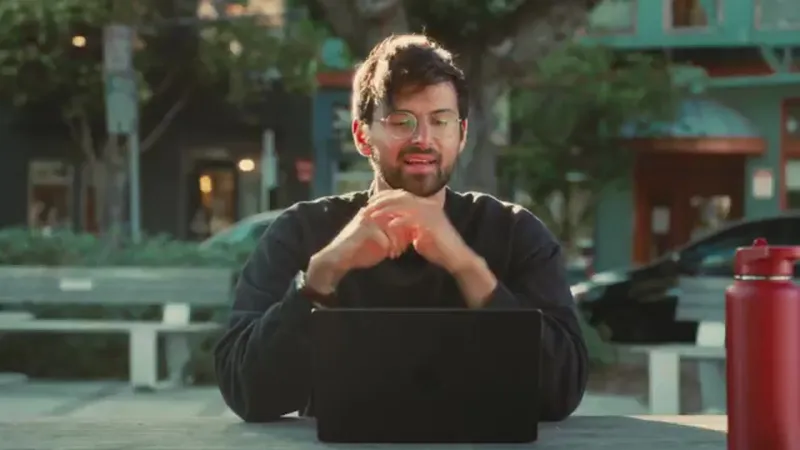
- The presenter speaks directly to camera while subtitles echo his words; the sampled visuals show him at a laptop but do not show the software demonstrations described in the transcript.
“Today we're shipping screen-aware dictation. First, we built a speedy speech-to-text (very fast, ~450ms). But, many products do this! So we went further. Now dictate using your screen as context. In Claude Code, it writes the prompt. In G-Mail, it replies in your voice. Demo: https://t.co/N5EZKJR5iR”
- Text
“Hey, so today we're adding dictation to hey Clicky.”
- 01Introduce and demonstrate the basic capability
Establishes what the product does and gives a concrete first use, setting up the later distinction between ordinary dictation and screen-aware assistance.
Announces the tool and explains the simple action that activates it and what happens as a result.
“Hey, so today we're adding dictation to hey Clicky. All you got to do is Press and hold FN+ control, start talking and whatever you're saying will stream in as text into whatever text box your cursor is on. For example, if I'm on Apple Notes, I can just say today I have to ship three things. First, skills, second, memory and third, this bug that this one user gave about dictation. So that's pretty cool. And honestly, many products already do this exact thing today.”
- 02Reframe the common feature and reveal the differentiator
Answers why this version matters beyond ordinary dictation and promises a demonstration of its distinct value.
Contrasts the common capability with a personal limitation, then introduces screen-aware dictation as the more novel solution.
“But here's the thing. When I'm writing I often don't really know what I even want to say. So check this out. Worshiping Screen Aware Dictation. It's pretty cool. I've never seen anything like it before and I want to show you.”
- 03Demonstrate the feature in a familiar scenario
Pays off the demonstration promise with a specific workflow, showing both contextual generation and personalization.
Uses an email example: the user dictates a request and the tool generates a reply in the text box, informed by the user's voice or preferences.
“Let's say I want to write a reply to this email, but I'm not quite sure what I want to say. I can just say, hey Clicky, type a reply to this email and say something like thanks, appreciate you and ask him what his use cases are for the product. And this would take like five seconds but it'll actually generate a reply directly in my text box in Gmail. I pasted your reply and it'll be in my voice based on hey Clicky's memories of me.”
- 04Explain the advantage and demonstrate a second use
Connects the demo to its underlying benefits—using on-screen context and helping when the user is unsure what to say—then illustrates broader capability through a second scenario.
Names two reasons the feature is useful, then shows it composing a follow-up prompt and explaining unfamiliar technical material.
“This is magical because one, we're using the context of the actual screen to write the reply and two, it's as if I can write while having a conversation even if I don't know what I want to say. Hey Clicky, I'm non technical and I have no idea what Claude is talking about here. Can you type a follow up prompt in the terminal and also explain it to me so I can learn? I've pasted in a good follow up prompt. Claude said the next step is to build the app in xcode and this whole screen dictation feature gets so much more powerful.”
- 05Show another specialized use and broaden the evidence
Extends the product’s demonstrated range from everyday writing to specialized tasks, and supports that range with examples attributed to users.
Demonstrates invoking a skill for a task-specific output, then lists varied ways users apply the feature.
“With skills you can activate a skill like our Y Combinator skill directly in the park and then you can say hey Clicky, this is the one liner from my pitch deck. Type something good that YC would appreciate as the first opener slide on my Google Slides here and it'll just do it. We've been seeing our users use Screen Aware dictation for tons of different things. People using it in Google Ads to help them write better ad copy, people getting help on writing their resume, and lots of people just using it to reply to Messages on Slack LinkedIn, stuff like that.”
- 06Close with status, caveat, and invitation
Ends with a concrete availability update and a candid qualification, then gives viewers a direct way to respond.
States that the feature is available, notes that it has bugs while being improved, and invites feedback.
“So that's it. This is in production right now. It's a little bit buggy, but we're making it better every single day. Let us know what you think and enjoy.”