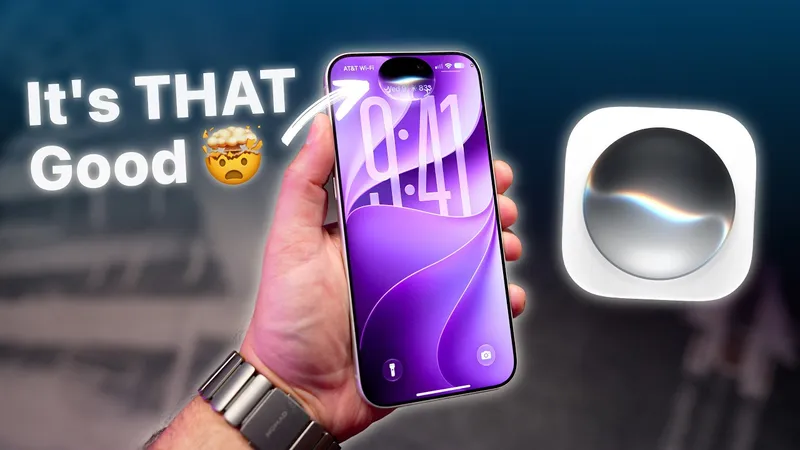
50 Ways to Use Siri AI Right Now
Stephen Robles@beardfm50 Ways to Use Siri AI Right Now
The video presents more than 50 ways to use Siri AI, including searching old messages, recognizing on-screen content, getting recommendations, and working with maps, photos, calendars, and other apps. It also covers supported devices and setup; the opening shows message searches and personal-context features in use.
- Views
- 276.5K
- Likes
- 3.1K
- Comments
- 340
- Siri AI featuresIPhone Setup and CompatibilityMessages and Personal ContextMaps, Photos, and Calendars
Analysis
The video presents more than 50 ways to use Siri AI, including searching old messages, recognizing on-screen content, getting recommendations, and working with maps, photos, calendars, and other apps. It also covers supported devices and setup; the opening shows message searches and personal-context features in use.
- TutorialDemonstrationListicle
- Title
- 50 Ways to Use Siri AI Right Now
“Siri AI is finally here, and it's a real personal assistant on your iPhone. And I'm going to show you 50 different ways you can use Siri AI right now. Like searching all your messages across the years, identifying movies and books. Siri is really good at general knowledge now. Give recommendations for a cafe or restaurant you're standing at. Great tools for maps, calendars, events. And with on-screen awareness and visual intelligence, Siri AI is really powerful. But first, device compatibility and how to enable Siri AI. When it comes to supported hardware, it If you had Apple Intelligence on your current device, you should also get Siri AI, so that's iPhone 15 Pro or newer, all Macs with Apple Silicon like the M series and newer, and iPads with A17 Pro or newer. Currently, your device has to be set to English, but coming in October, we get French, Japanese, Korean, Portuguese, and Spanish. And for those of you in the EU, sorry, no date on when Siri AI might be coming. Once you update to iOS 27, go to the Settings app on your iPhone, and then scroll down until you find Siri.”
- 01Introduce the tool and promise the tour
This establishes the subject and viewing proposition immediately, setting an expectation of a broad, practical tour.
The speaker presents Siri AI as a personal assistant and promises 50 ways to use it right now.
“Siri AI is finally here, and it's a real personal assistant on your iPhone. And I'm going to show you 50 different ways you can use Siri AI right now.”
- 02Sample the range and qualify availability
The varied examples make the promised range tangible. The transition to access requirements qualifies who can use the tool before the main tour proceeds.
The speaker samples several uses, describes the tool as powerful, then turns to compatibility and enabling it.
“Like searching all your messages across the years, identifying movies and books. Siri is really good at general knowledge now. Give recommendations for a cafe or restaurant you're standing at. Great tools for maps, calendars, events. And with on-screen awareness and visual intelligence, Siri AI is really powerful. But first, device compatibility and how to enable Siri AI.”
- 03Explain eligibility and rollout limits
This sets concrete expectations about compatibility and rollout before the tutorial moves into setup and feature use. The region-specific uncertainty remains qualified rather than resolved.
The speaker lists supported hardware, the current language requirement and planned language additions, then notes uncertainty about availability in the EU.
“When it comes to supported hardware, it If you had Apple Intelligence on your current device, you should also get Siri AI, so that's iPhone 15 Pro or newer, all Macs with Apple Silicon like the M series and newer, and iPads with A17 Pro or newer. Currently, your device has to be set to English, but coming in October, we get French, Japanese, Korean, Portuguese, and Spanish. And for those of you in the EU, sorry, no date on when Siri AI might be coming.”
- 04Begin access and setup instructions
This marks the handoff from introductory framing to concrete setup instructions. The excerpt continues into operational explanation, so the identified introduction ends at the first procedural turn.
The speaker starts describing an update, a settings path, and the waitlist, then continues into access and indexing details.
“Once you update to iOS 27, go to the Settings app on your iPhone, and then scroll down until you find Siri.”